Selecting Trading Pairs
Step 1: On the left side of the page, hover over the dropdown next to the current trading pair to see all available Spot trading pairs. Each pair shows the Last Traded Price and the 24-hour percentage change.
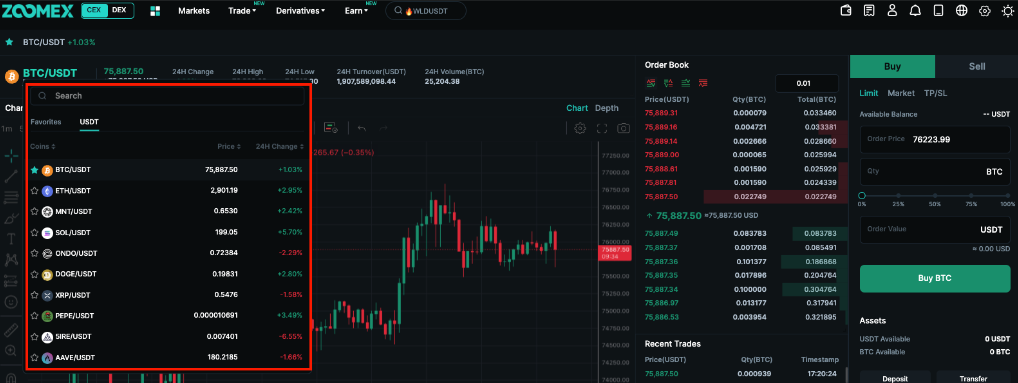
To quickly locate a specific trading pair, use the search box to enter the desired pair.
Place Your Order
Zoomex Spot Trading offers several order types. For details on each type, see Types of Orders Available on Zoomex.
Using a Market Order as an example, follow these steps to create a Spot Order:
Step 1: Ensure you're on the Spot tab, then select Buy or Sell for your chosen asset.
Step 2: Specify the order value or quantity. For other types, like Limit or Conditional Orders, enter the price or trigger price. For market buy/sell orders, the default setting is order value and order quantity.
Note: When using 100% of your balance for a market order, there may be a slight discrepancy between the maximum shown and the final calculated value. This buffer protects against market fluctuations, ensuring smooth order placement.
Step 3: A confirmation window will appear. Verify the order details, then click Buy or Sell.
Your order is now successfully placed!
Viewing Orders
Current Orders
View unfilled or pending orders under the Current Orders tab. To display all active orders across pairs, check the Show all trading pairs box.
Edit order details such as price, trigger price, or quantity by clicking the pencil icon.
Order History or Trade History
Switch to Order History or Trade History to see records you made. Use the Show all trading pairs option to view history for all pairs.
For records older than six months, visit the All Orders page.
Canceling Orders
To cancel an order, go to the Current Orders tab and select Cancel. You may also use Cancel All to cancel every order across all trading pairs if Show all trading pairs is selected.