Step 1:
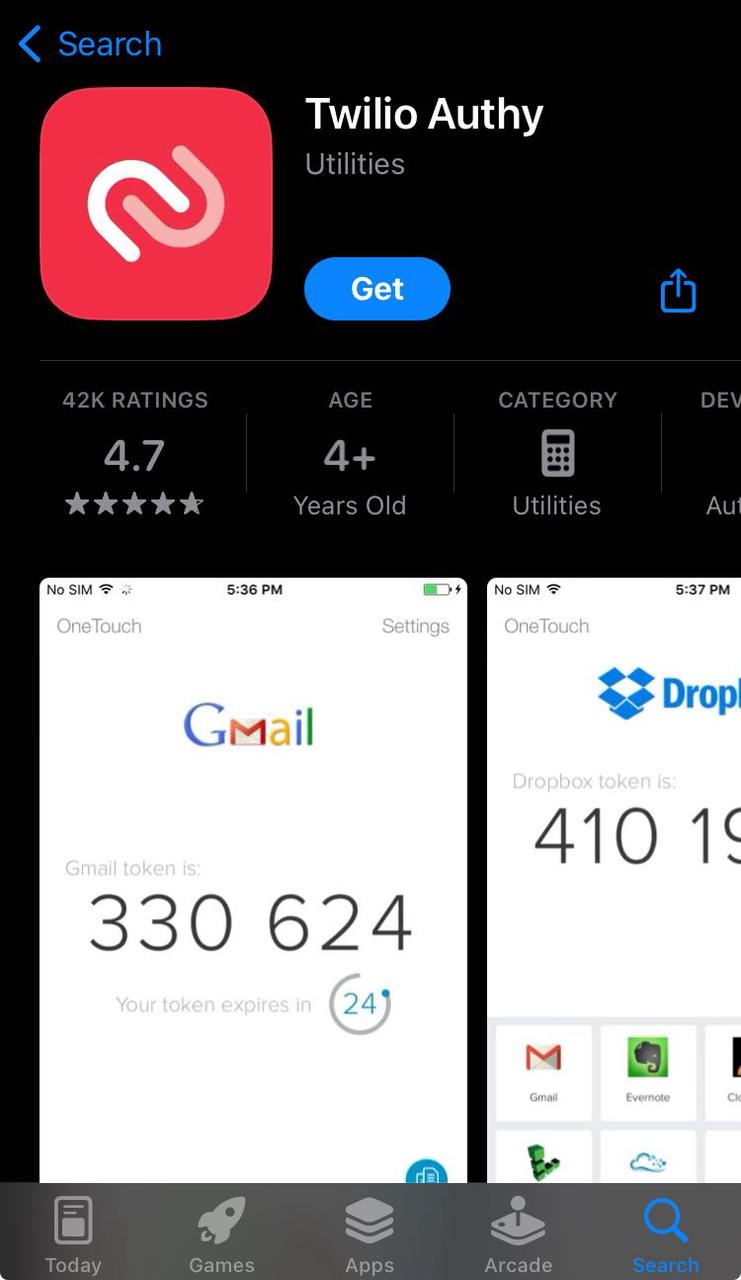
Search for 'Authy' in the App Store or Google Play and install it on your iPhone or Android device.
Step 2:
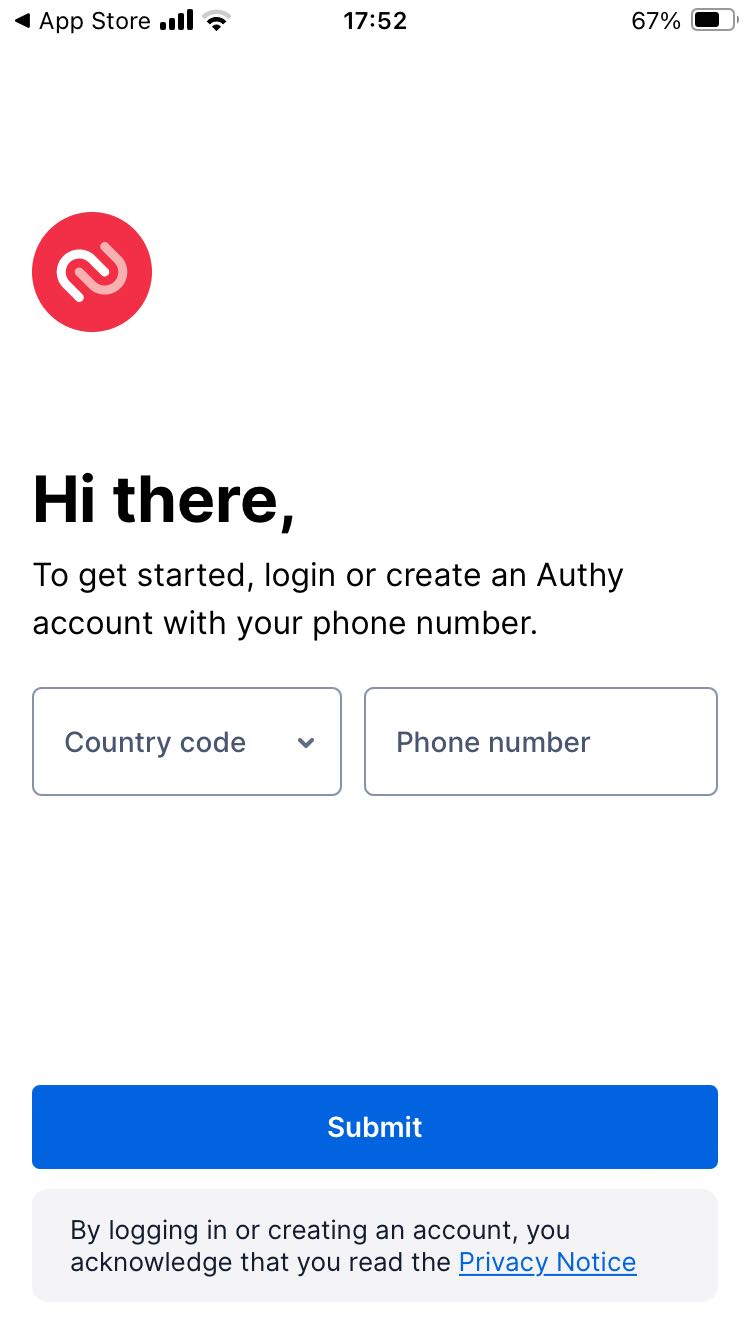
After installing the app, open it. You will see a greeting message page with a drop-down menu for 'Country Code' and a field for 'Phone Number'. Select your country code, enter your phone number, and click the 'Submit' button.
Step 3:
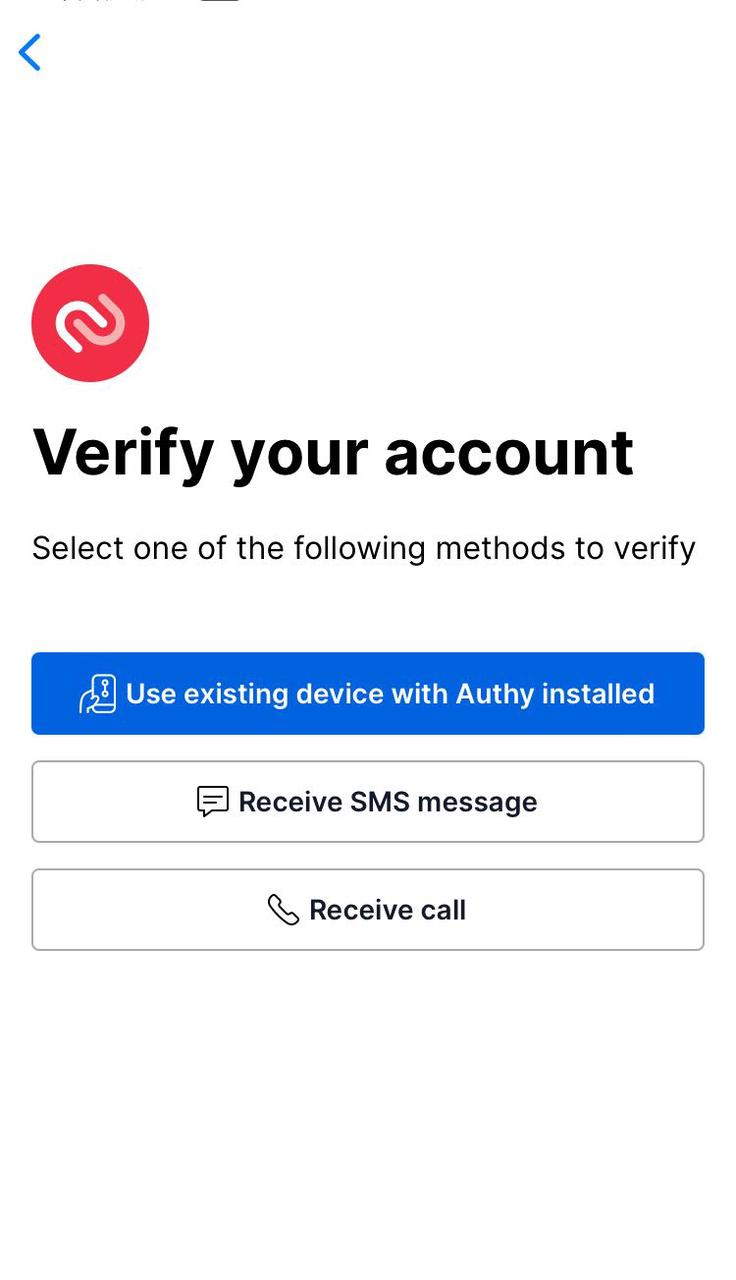
Verify your account by selecting the most suitable option from the three choices provided below.
Step 4:
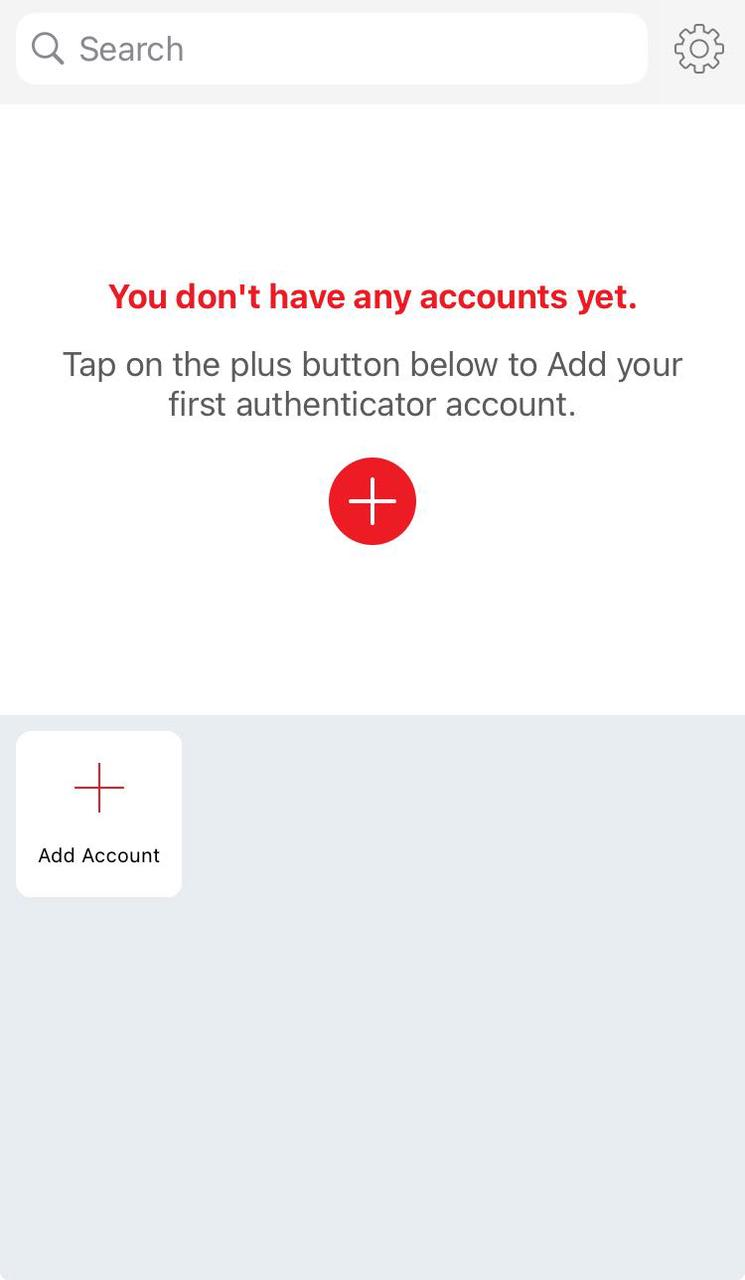
Upon completing the verification, you will be redirected to the main page shown below.
Step 5:
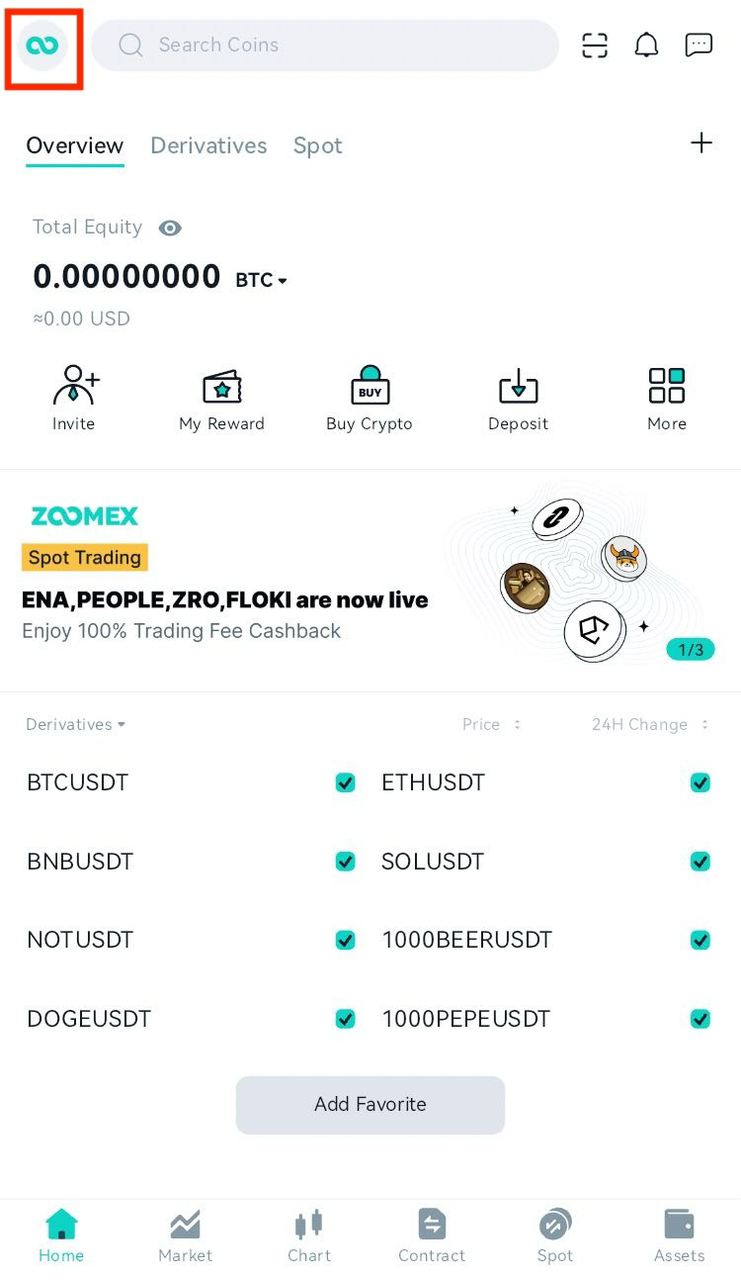
Open the Zoomex app on your mobile device and select the Zoomex icon button located at the top left corner.
Step 6:
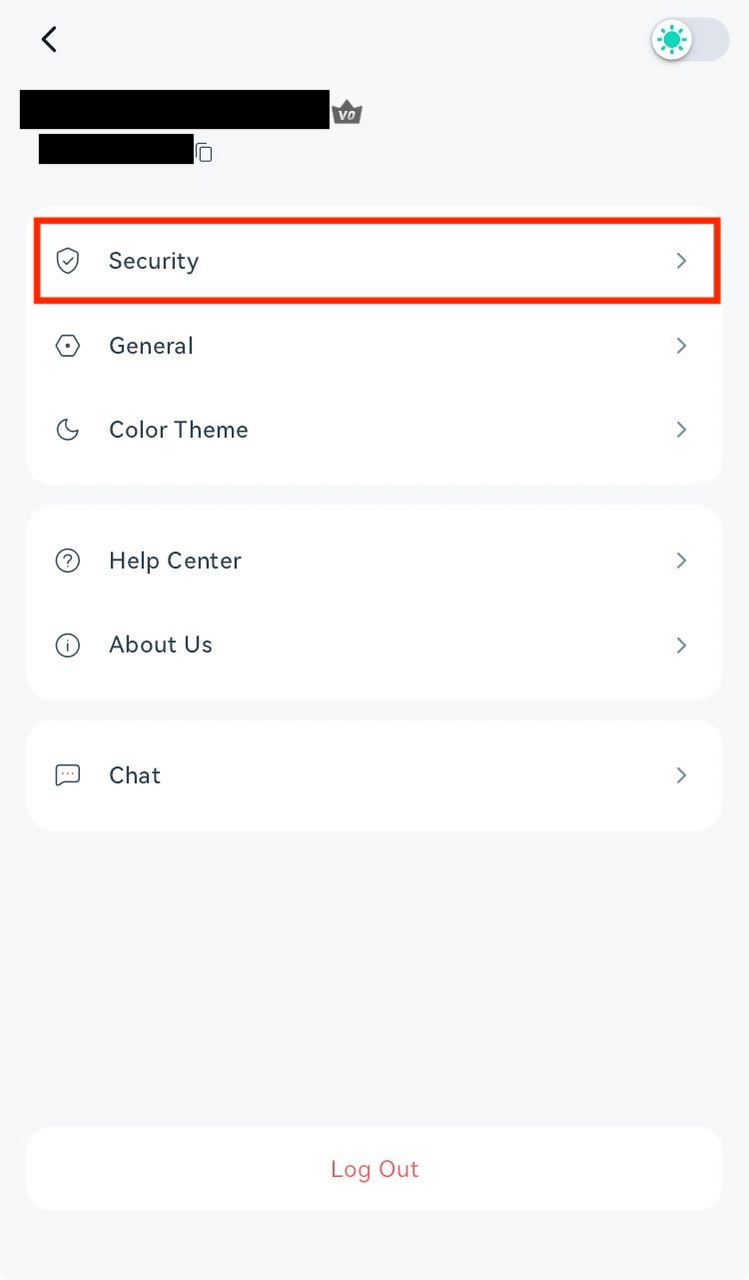
Click on the "Security" option.
Step 7:
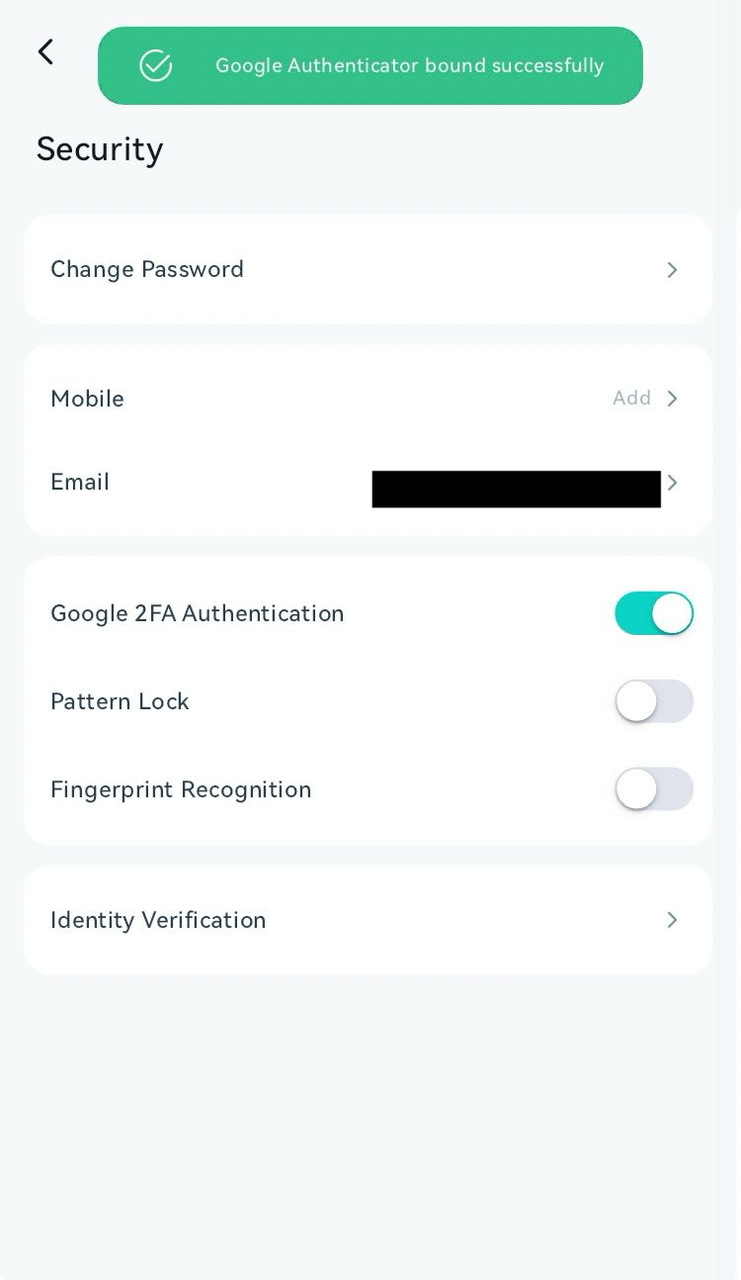
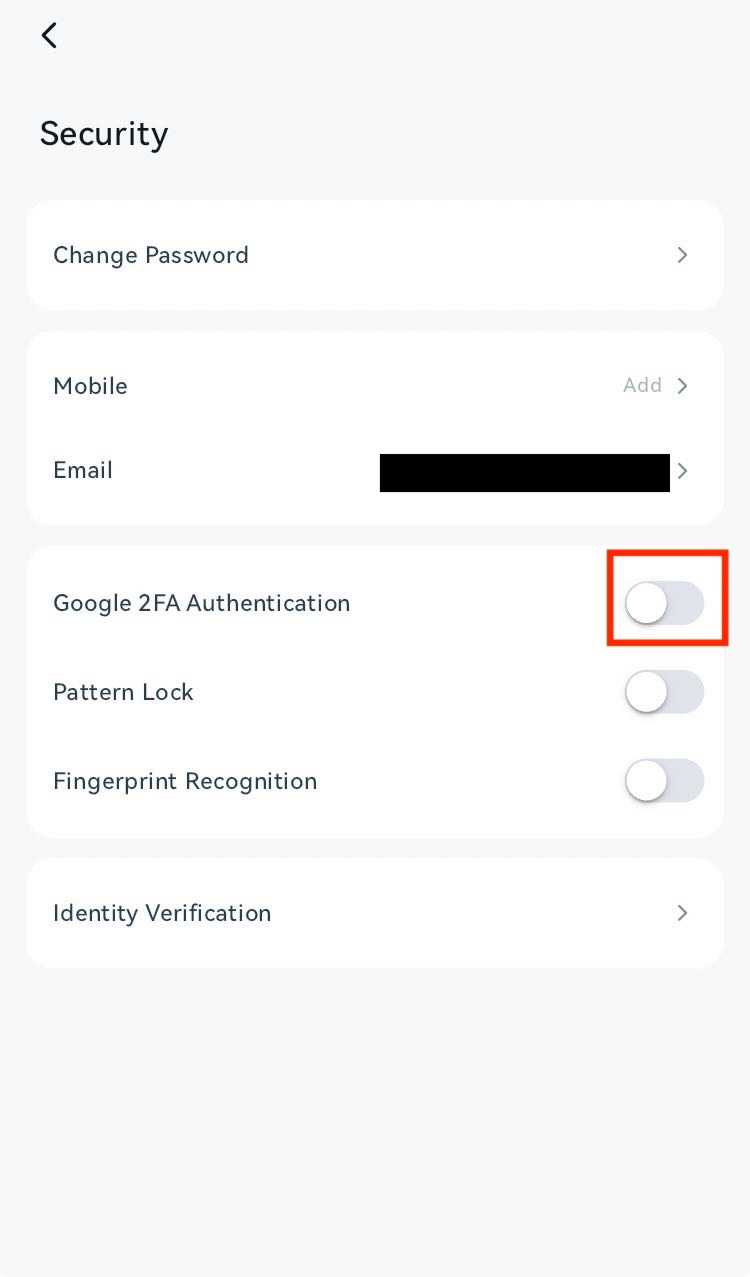
Enable "Google 2FA Authentication" by toggling the switch below.
Step 8:
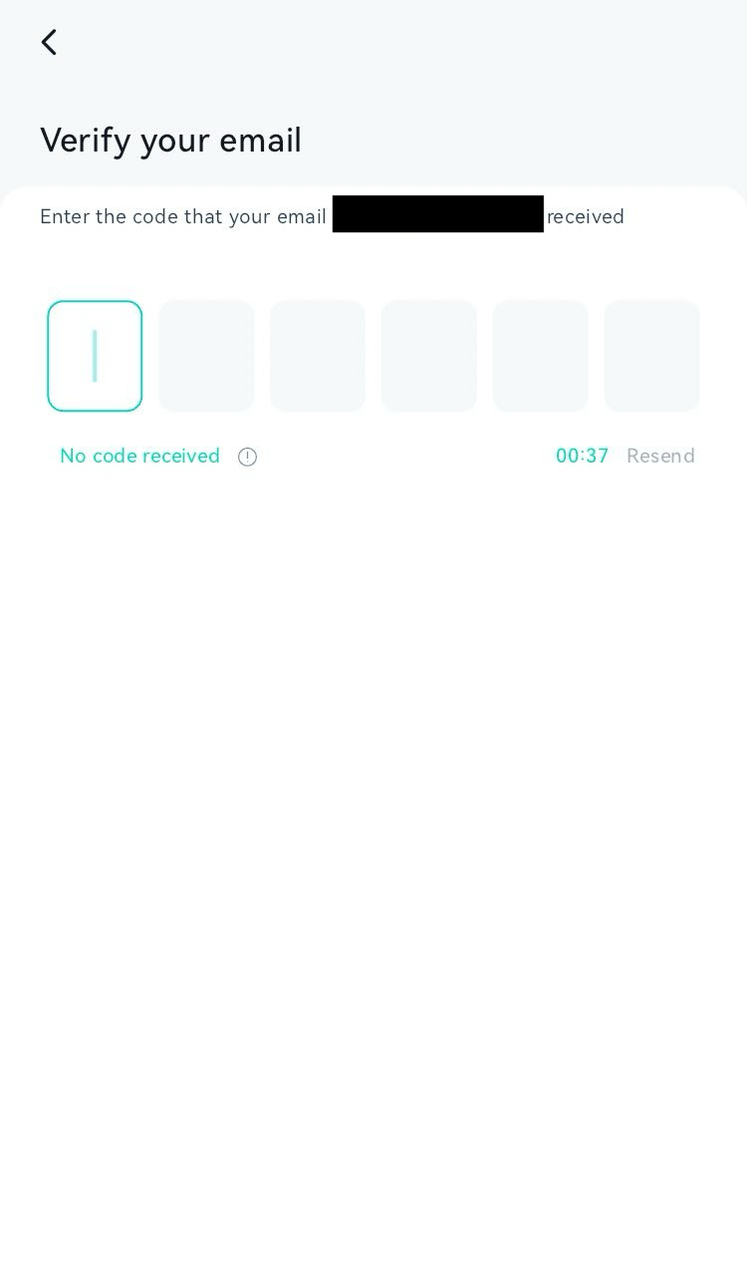
Verify your email by entering the code you received in your email.
Step 9:
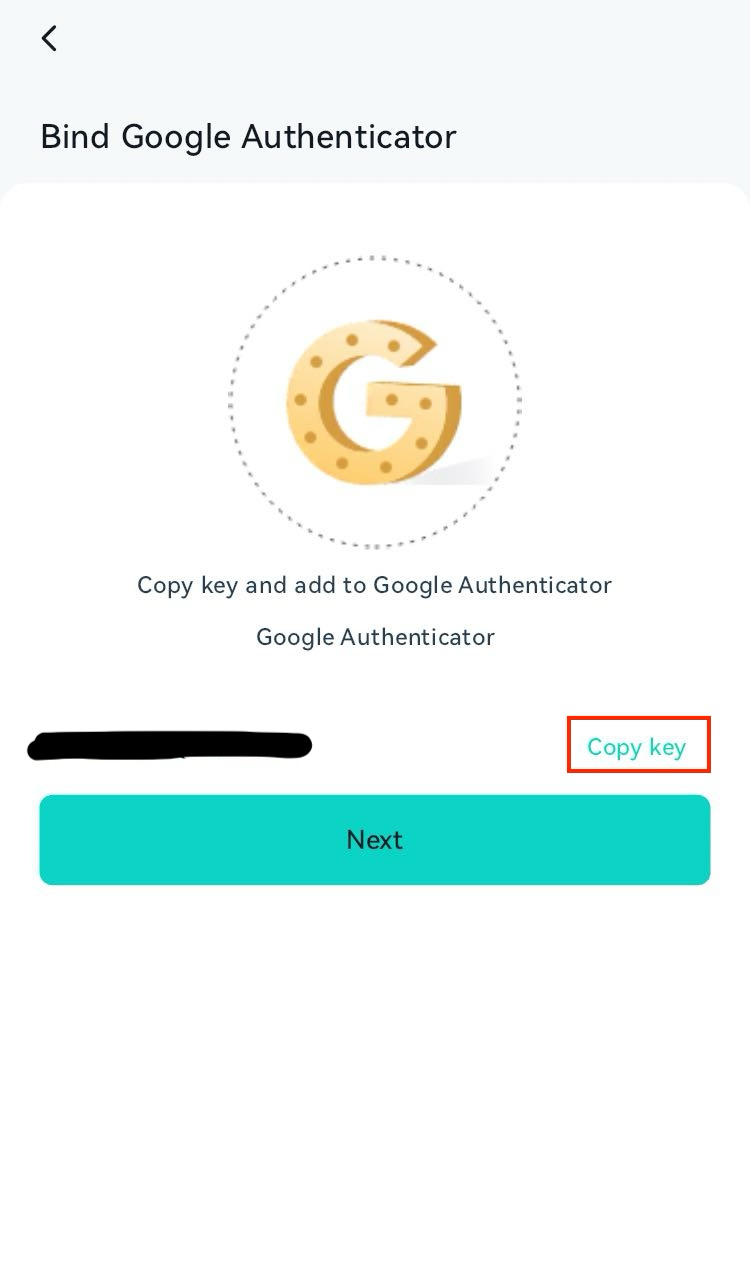
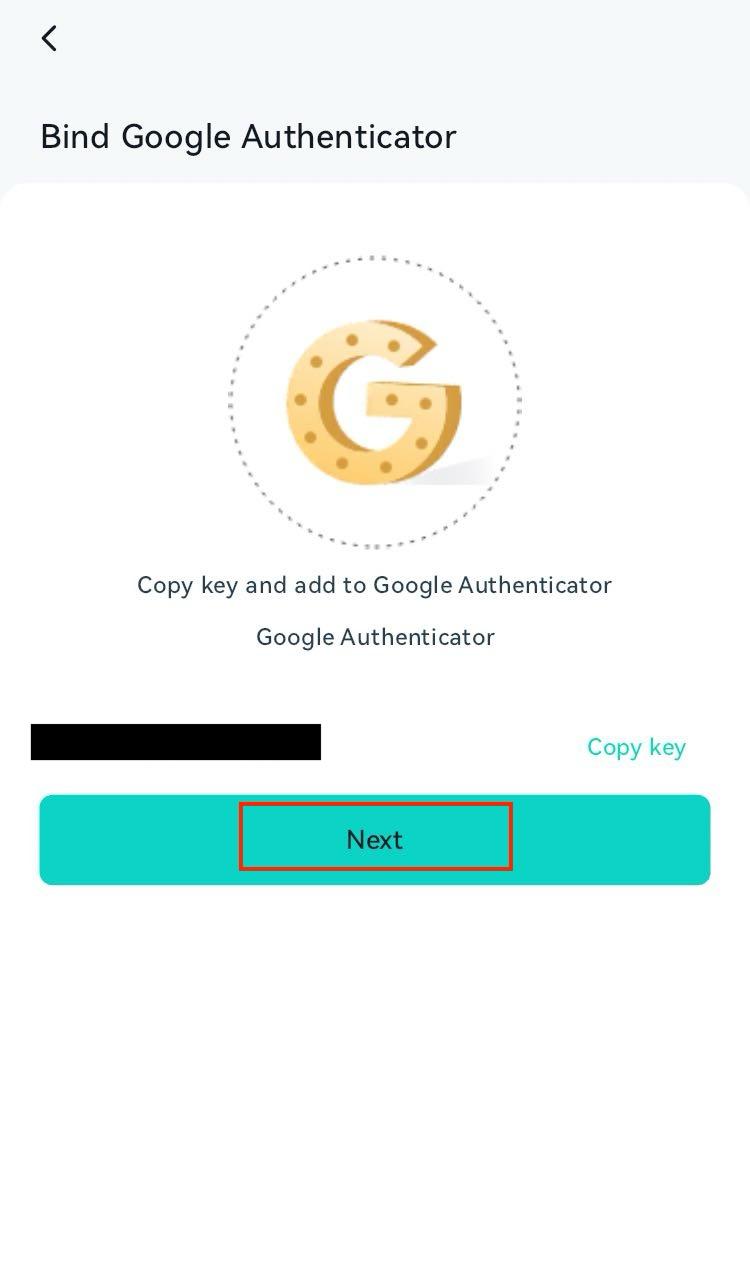
Click on "Copy key" to copy the key to clipboard.
Step 10:
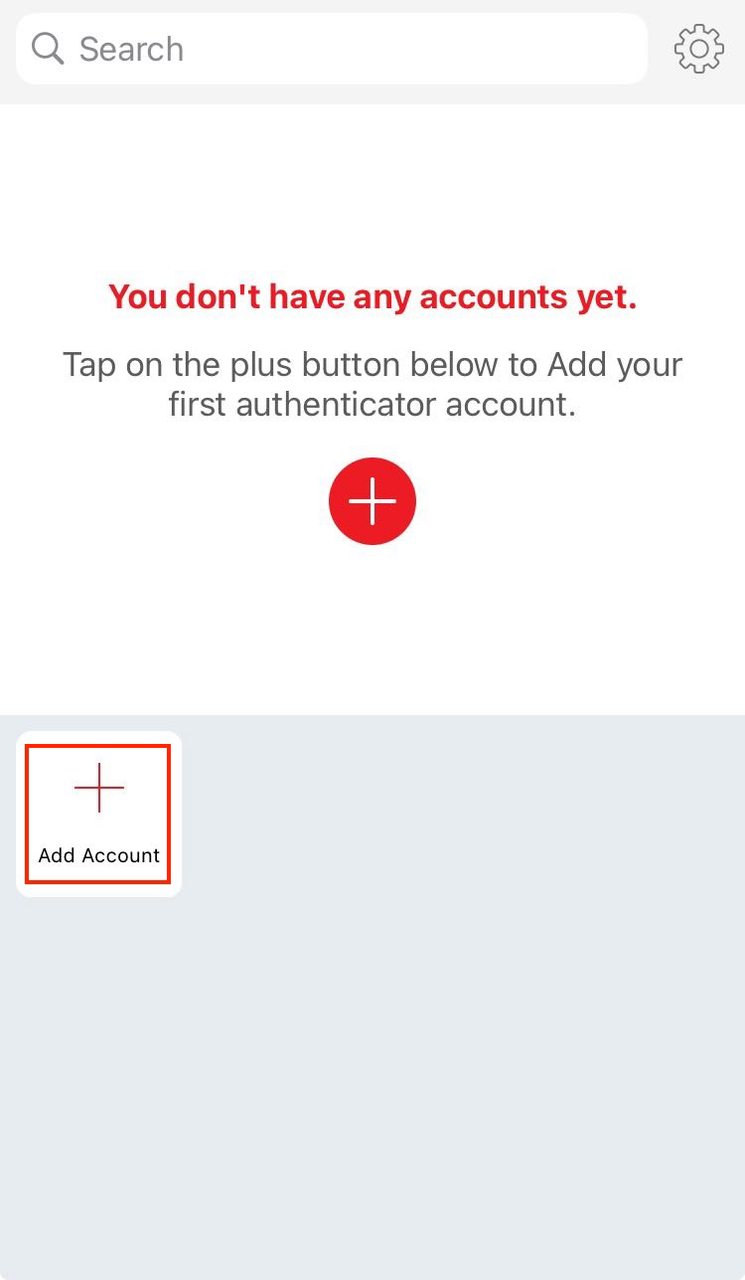
Return to the main page of the Authy app as shown in Step 4, and click on "Add Account".
Step 11:
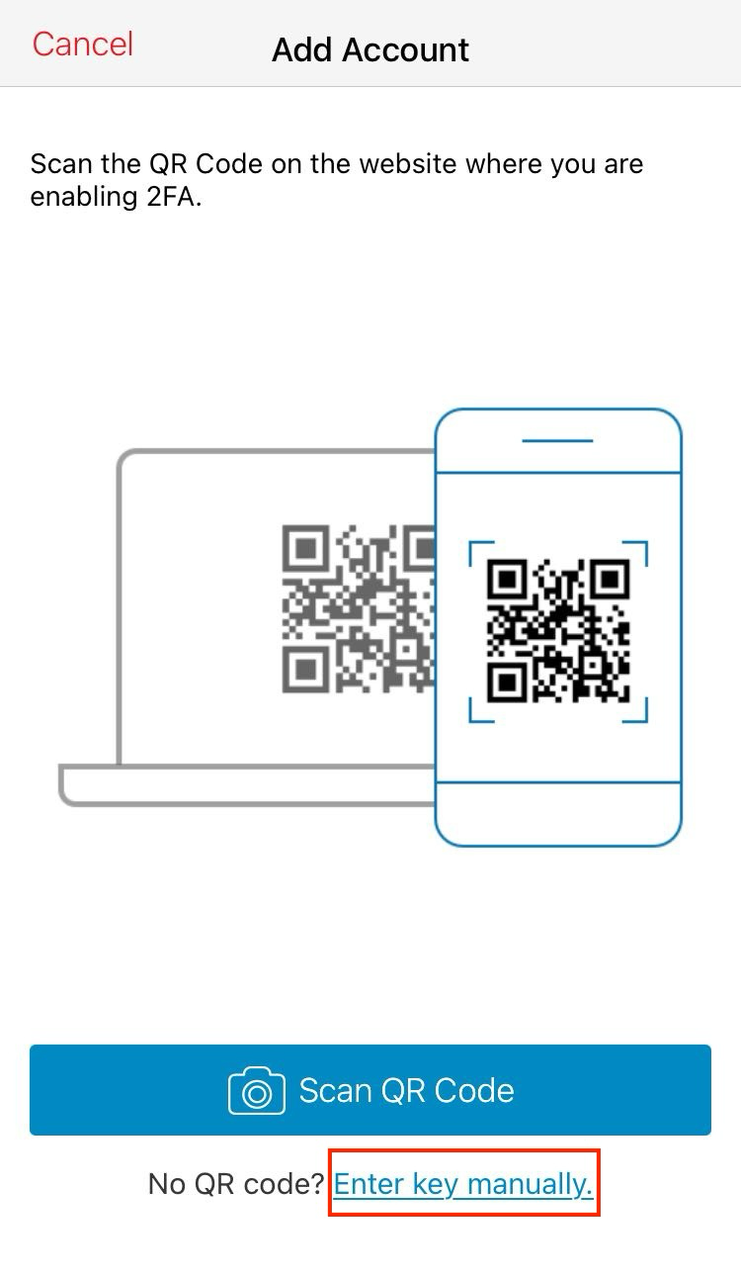
Click on "Enter key manually" at the bottom of the page.
Step 12:
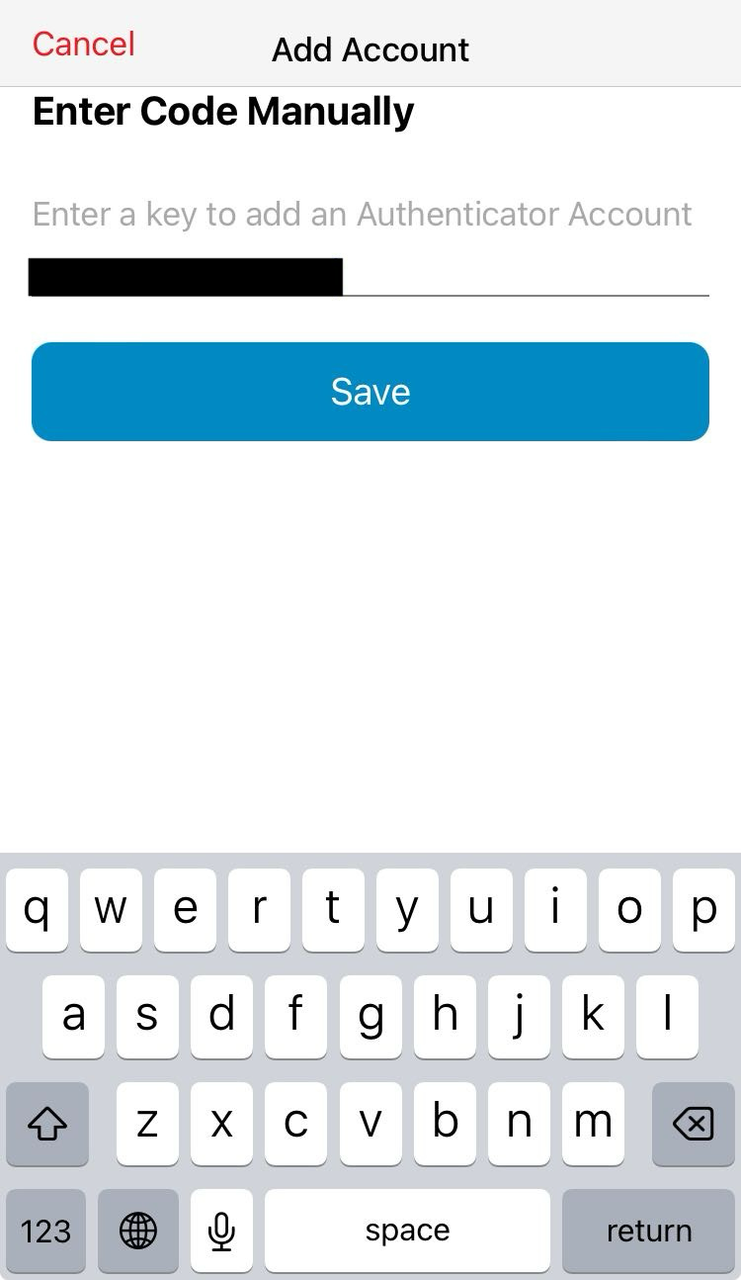
Paste the key copied from Step 9, and then click "Save".
Step 13:
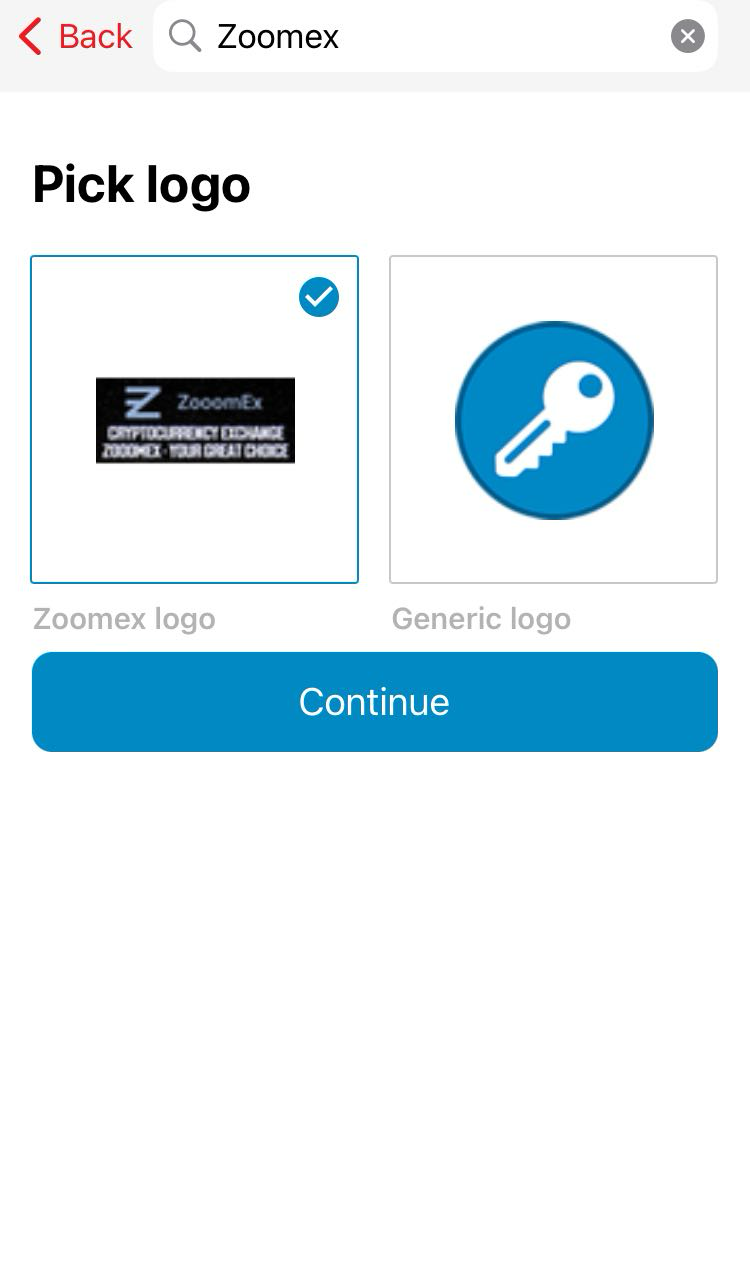
Choose a logo by searching or selecting a generic one, then click "Continue".
Step 14:
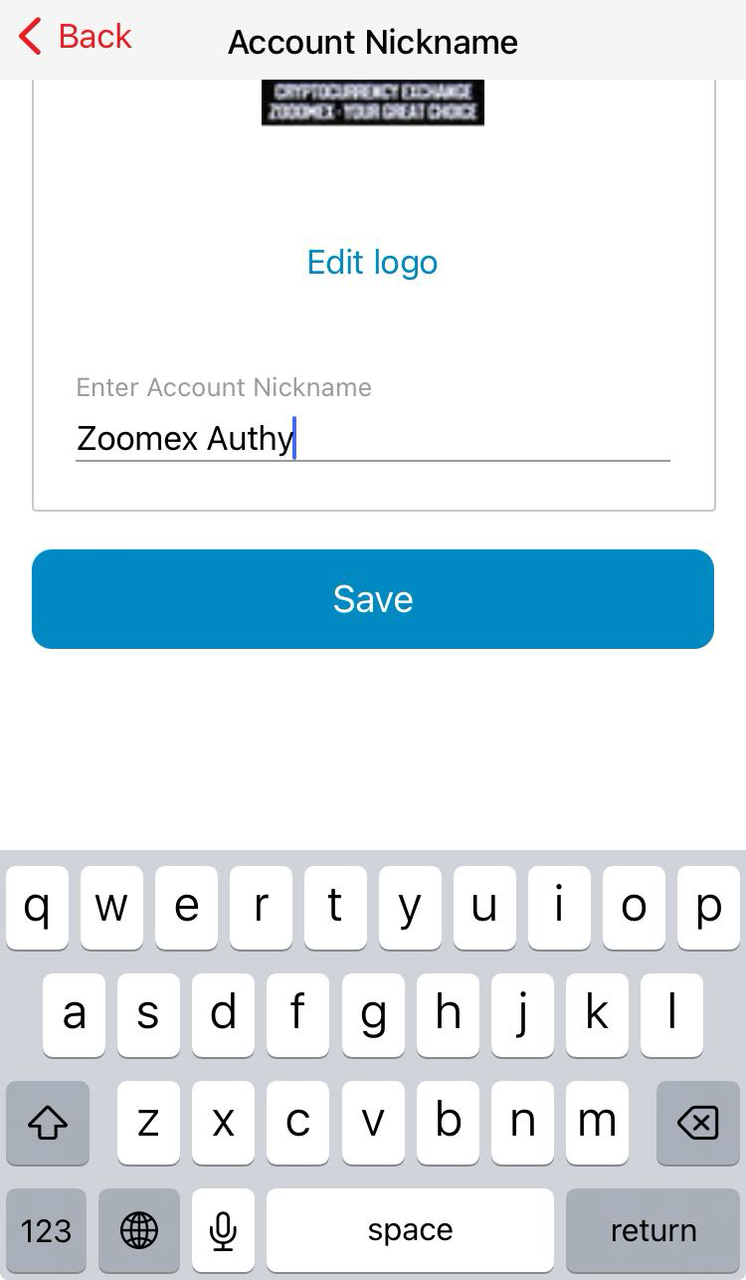
Enter an account nickname to name the account.
Step 15:
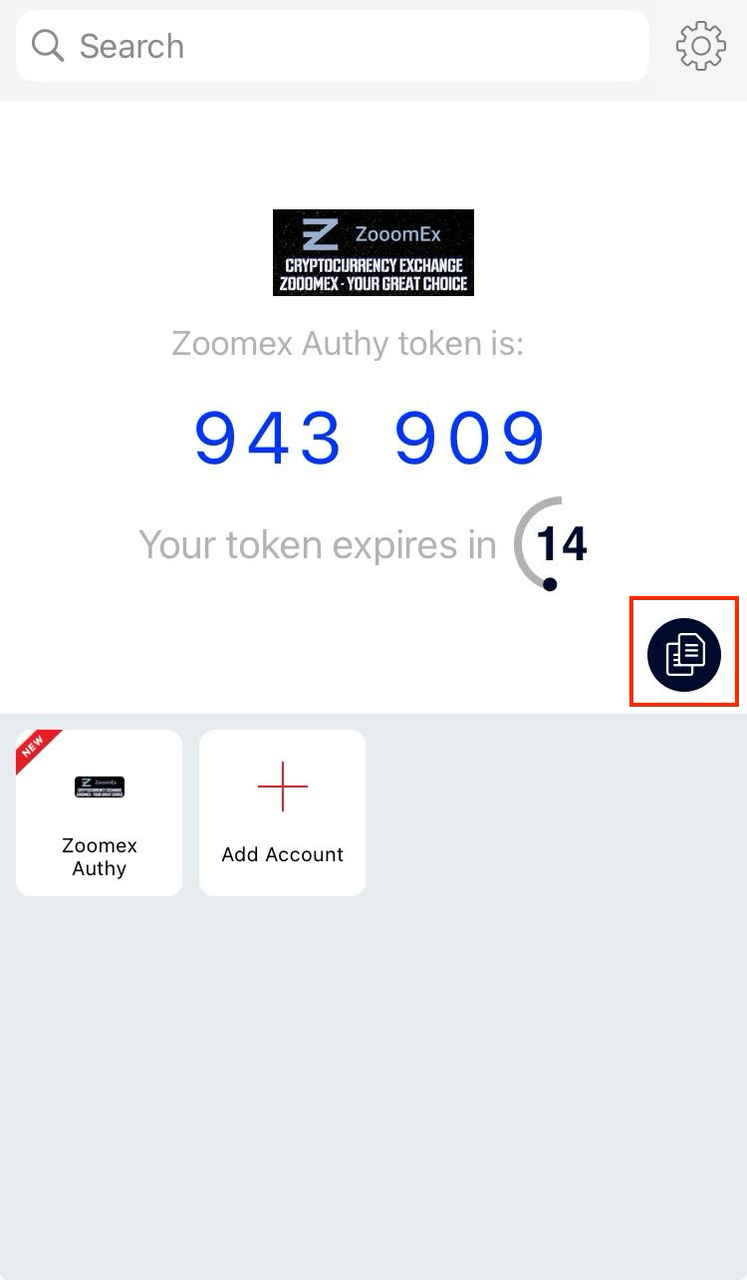
Copy the 6-digit token number to the clipboard.
Step 16:
Return to the Zoomex app as shown in Step 9, and click "Next".
Step 17:
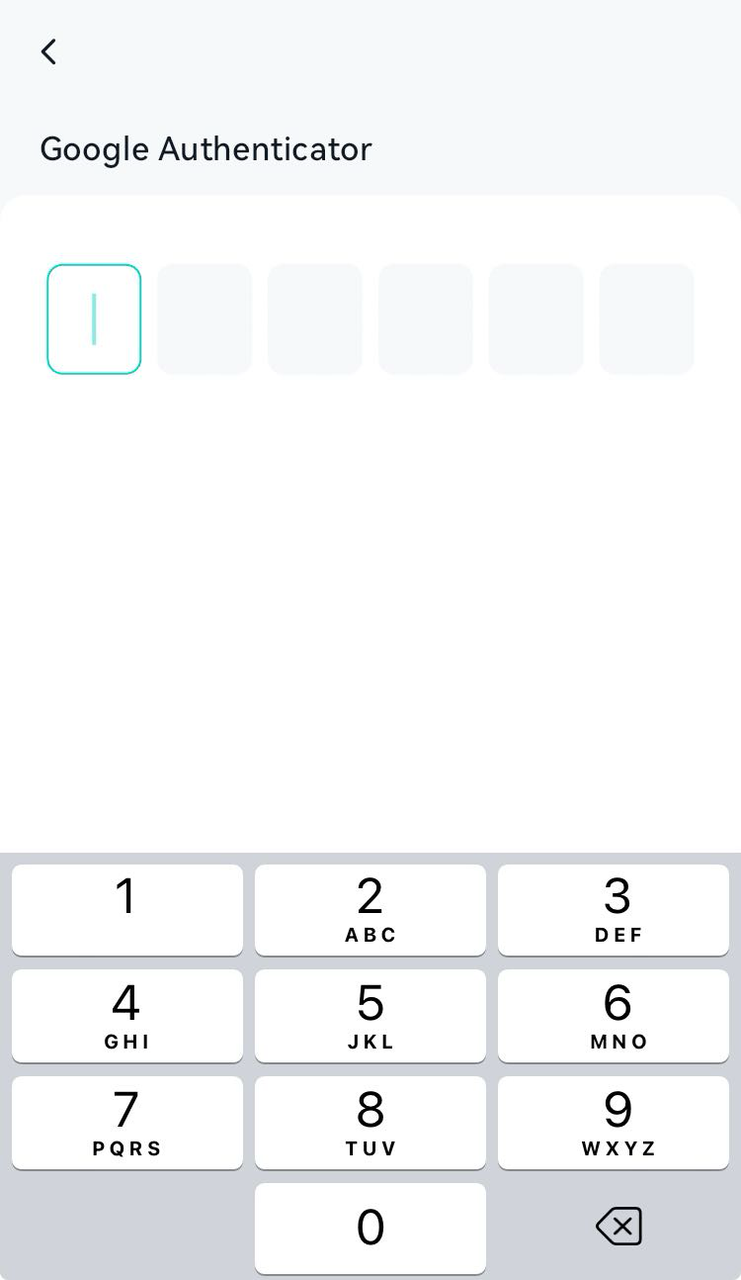
Enter the 6-digit token number copied from the "Authy" app.
Step 18:
Your 2FA setup is now completed.