This article contains the following sections:
How do we change the TP/SL price?
How to Remove the TP/SL set for your position?
How to set multiple partial TP/SL in partial TP/SL mode?
How to Change TP/SL Preference?
How to enable Take Profit (TP) and Stop Loss (SL)?
How do we change the TP/SL price?
Click on the Details button inside the position tab.
A window will appear, choose the pencil icon right after your existing TP/SL.
Another window will appear, fill the tabs accordingly and set the new TP/SL price you prefer.
How to Remove the TP/SL set for your position?
Locate the 'Positions' tab
Click on the Details button inside the position tab.
In the next window, there are 2 different ways to remove your TP/SL
Choose the "Trash Bin" icon to individually remove a particular TP/SL
Choose the "Cancel All" icon to delete all TP/SL
How to set multiple partial TP/SL in partial TP/SL mode?
Partial setting of TP/SL can only be done inside the position tab (When you have an existing open position). Please also ensure that you are on the "to Selected TP/SL positions" mode.
Locate the "Positions" tab.
For positions with an existing TP/SL set during order placement:
Note:
1. When setting up your open orders' TP/SL inside the order zone, the system will automatically set the TP/SL for the entire order quantity.
2. Before you can add-in partial TP/SL for your open position, you will need to amend and clear all existing quantity for the entire position TP/SL first.
Locate the Position tab below the Price chart and click on the "Details" button inside the position tab.
Remove or reduce from the entire quantity of the existing TP/SL.
Proceed to click on the "Add" button and set it according to your preference. Click on the "Confirm" button. After you confirm the change, you should be able to see that your additional Partial TP/SL has been added. Refer to the video guide below
For positions with no TP/SL set
Click on the "+ Add" button.
Proceed to click on the "Add" button and set it according to your preference. Click on the "Confirm" button. After you confirm the change, you should be able to see that your additional Partial TP/SL has been added. Refer to the video guide below
How to Change TP/SL Preference?
Note: To successfully Change your TP/SL Preference, you must remove all existing conditional orders and TP/SL set located within the "Positions" tab and "Active order" tab. Any existing TP/SL for an order or position won't allow you to change your TP/SL preference.
Changing preference for one trading pair doesn't affect the preference set for the other trading pairs.
Step 1: Click on the Gear icon on the right hand side of the trading platform page.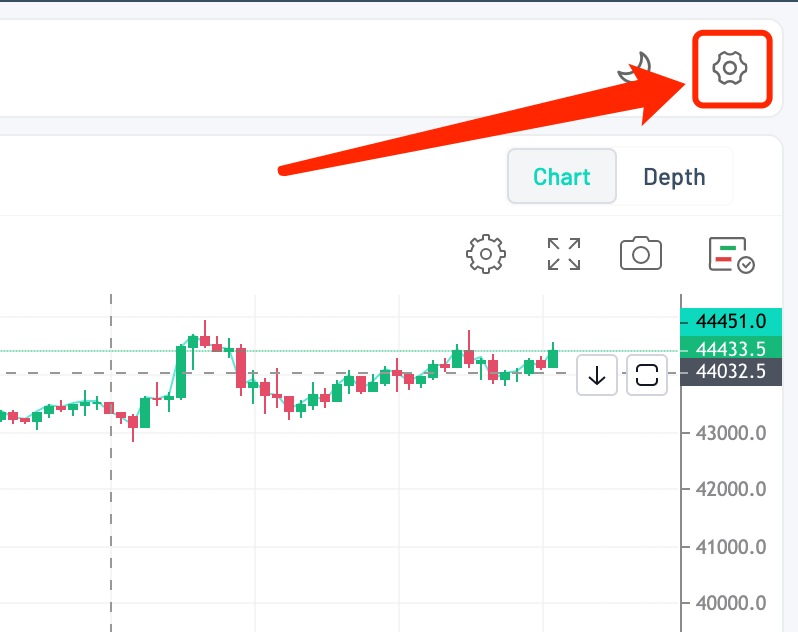
Step 2: change your TP/SL preference accordingly.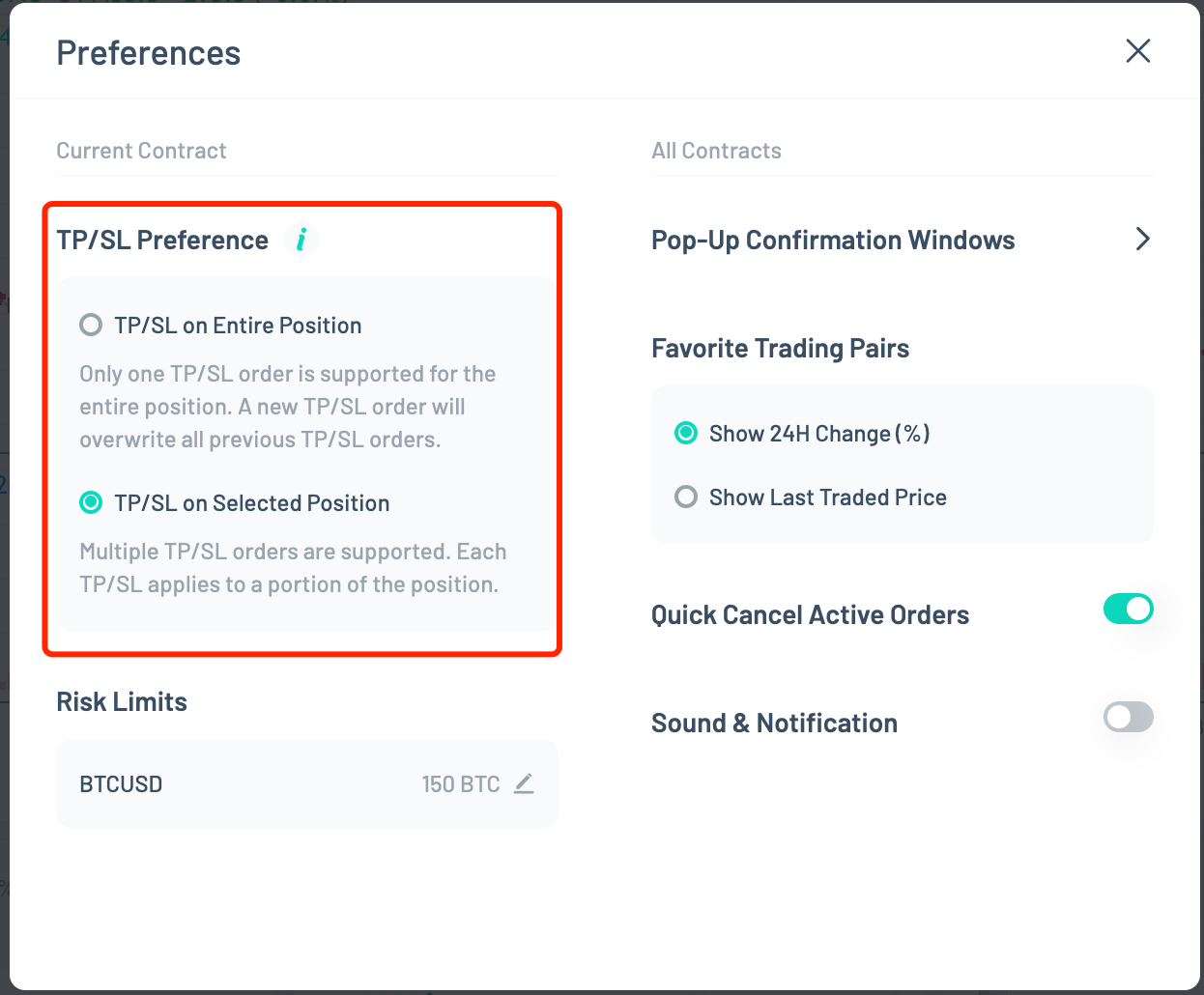
Step 3: Once your preference has been successfully switched, you should be able to see a successful message.
How to enable Take Profit (TP) and Stop Loss (SL)?
Enable TP/SL when placing an order to open a position (No existing open position)
- Locate the order placement zone on the right side of the trading page.
- Enable the TP/SL function by checking the boxes as shown below.
- After checking the boxes, the option to key in the TP/SL trigger price and selection of reference price to trigger will appear.
Note:
- You can either manually key in a trigger price or use the percentage bar as a quick estimate to determine a trigger price to trigger TP/SL orders in order to achieve certain P&L percentage (excluding trading fees).
- You can also select between 'Last', 'Index' or 'Mark' reference prices to trigger your TP/SL.
- Proceed to successfully place the order. The TP/SL will appear once your order is successfully executed and held as an open position
Enable TP / SL when holding an existing open position
- Locate the 'Positions' tab
- Locate the TP/SL(TS) column within the Positions tab and click on "Add"
- After checking the boxes, the option to key in the TP/SL trigger price and selection of reference price to trigger will appear.
Note:
- You can either manually key in a trigger price or use the percentage bar as a quick estimate to determine a trigger price to trigger TP/SL orders in order to achieve certain P&L percentage (excluding trading fees).
- You can also select between 'Last', 'Index' or 'Mark' reference prices to trigger your TP/SL.
- Once all settings are done, click on 'Confirm' to proceed.
- Check the TP/SL(TS) column again to ensure that there is a green (TP) and/or red (SL) number showing inside your Positions tab.