Here’s an overview to make it easier for you to understand the Zoomex’s perpetual/inverse futures contract trading page.
Position Tab1. Contracts
This shows the trading pair of the position the trader is currently holding. Traders holding more than one position from different trading pairs can select "Show All Positions" to view details of all their positions in one tab.
2. Quantity
This shows the quantity of contracts trader has placed. Please note that, for inverse contracts, the quantity is quoted in USD. For USDT contracts, the quantity is quoted in USDT or the underlying cryptocurrency.
3. Value
This refers to the position value.
Inverse contract: position value = contract quantity / entry price
USDT contract: position value = contract quantity * entry price
4. Entry price
This refers to the average entry price of the position. Please note that, when trader add more quantity to the position, the average entry price will be calculated as followed:
Inverse Contract
Average entry price = Total quantity of contracts / Total contract value in BTC
Total contract value in BTC = [(Quantity1/Price1) + (Quantity2/Price2) + (Quantity3/Price3)....]
USDT Contract
Average entry price = total contract value in USDT/total quantity of contracts
Total contract value in USDT = [(Quantity1*Price1) + (Quantity2*Price2) + (Quantity3*Price3)....]
For more details, please refer to: How to calculate average entry price?
5. Mark Price
This shows the current mark price of the respective trading pair of the position held.
6. Liquidation price
This shows the liquidation price of trader's position. Please note that Zoomex use mark price to trigger liquidation. When mark price reached the liquidation price, liquidation will be triggered and trader will lose all the position margin input.
Trader can check the mark price from the flagged green price on order book or the green line on the chart.
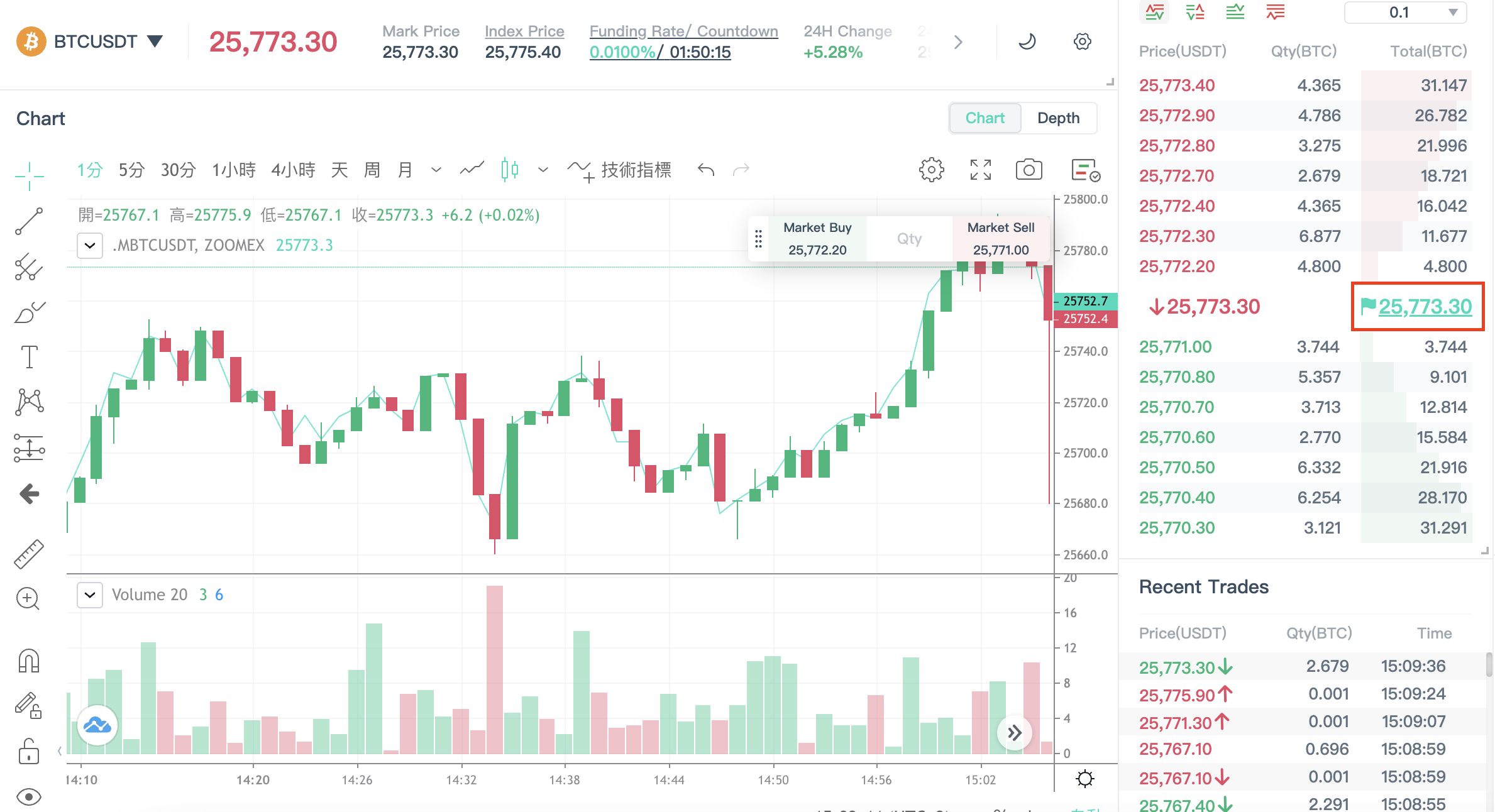
To understand more on how the liquidation price is derived, please refer to:
Liquidation Price (USDT Contract)
7. Position Margin
Position margin shows the margin that has been placed into position as a collateral to maintain the position. Under isolated margin mode, trader will lose all the position margin in place (excluding funding fees). Trader can also manually add more initial margin to their position to lower down the liquidation risk of their position. Please note that trader cannot add additional initial margin to a position once the initial margin in place equals to 100% of the position value.
Under cross margin mode, trader use all available balance within the corresponding trading pair coin type to prevent liquidation. The margin being occupied on position margin may differ from isolated margin mode.
8. Unrealized P&L (%)
Unrealized P&L shows the real-time unrealized profit or loss of the open position. By default, the unrealized P&L on the position tab are calculated based on the last traded price. However, when trader moved their cursor to the unrealized P&L, it will show the figure calculated based on mark price. Zoomex use mark price to trigger liquidation. By showing the unrealized P&L using mark price, trader can better estimate their room for losses to prevent liquidation.
Nevertheless, The actual settlement after trader close their position will be using the unrealized P&L calculated based on last traded price. Please be aware that it is an estimate of your position's profit and loss based on the Last Traded Price at that particular moment and it does not include any trading or funding fees that you may have incurred or received when holding the position.
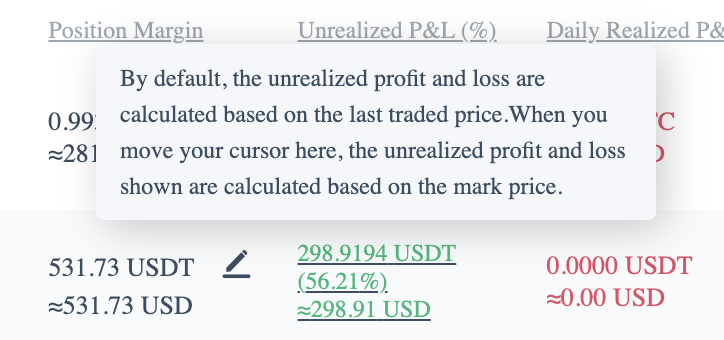
In the bracket, it shows the Return on Investment (ROI) of the position in its percentage form (Unrealized P&L %). Similar to Unrealized P&L, the figure shows changes depending on the movement of Last Traded Price.
Please refer to P&L calculations (Inverse Contracts) and P&L calculations (USDT Contract) for detailed illustrations.
9. Realized P&L
Realized P&L shows the sum of realized P&L of the position over the period. This includes all the trading fees, funding fees, and any position P&L realized from partial closing (same formula as unrealized P&L).
The realized P&L updates in real time and accumulates until the respective direction of position is fully closed.
10. TP/SL
Trader can set their take profit (TP) and stop loss (SL) order from the position tab. Zoomex support two TP/SL mode, which are TP/SL on entire position or TP/SL on selected position (partial position).
For more information, kindly refer to:
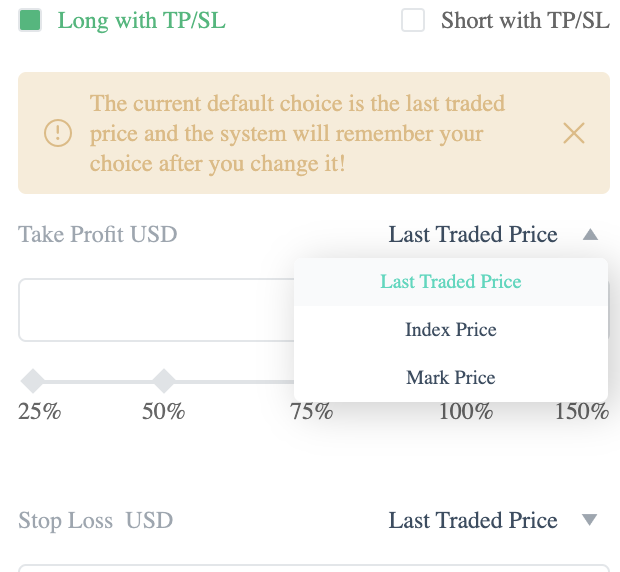
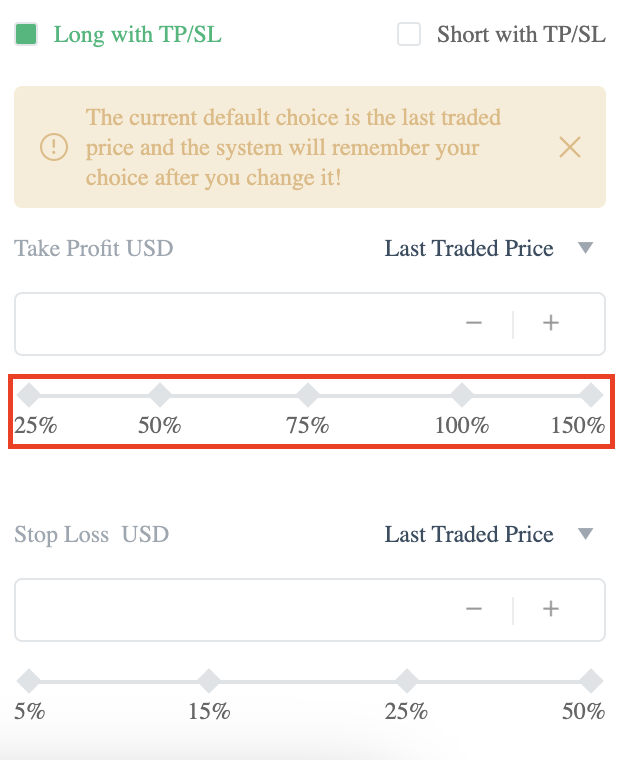
The percentage bar below the price column is referring to the estimated ROI% after the TP/SL is triggered. Please note that the TP/SL function on Zoomex is also executed via a conditional market order. Traders need to be aware that the price keyed in is the trigger price and may not represent the final execution price. For TP price, the price input must be better than the current market price while for SL price, it must be a price that is worse than the current market price.
11. Trailing Stop
A trailing stop will allow a stop order to follow the last traded price based on a pre-set distance and direction, and will automatically move to lock in the profit or stop loss.
To know how to set a trailing stop, please refer to How to set up trailing stop?
12. ADL
This shows the ADL ranking of the position. In the event of ADL (auto-deleveraging) happened, trader with the highest ranking in the system is prioritized and selected to deleverage first. The auto deleveraging ranking is derived in order of highest profit and effective leverage use.
13. Auto Margin Replenishment
Currently, Auto-Margin Replenishment (AMR) is only available under USDT perpetual contracts, isolated margin mode. AMR is a function that allows traders to automatically add margin to existing open positions in order to avoid liquidation. Once AMR is enabled, every time your margin level is about to reach the maintenance margin level, Zoomex will replenish the margin from your available balance. Similarly, the maximum margin that will be added is 100% of position value.
Kindly refer to Introduction to Auto-Margin Replenishment (USDT Contract) for more details.
14. Close By
Trader can choose to close by market order or limit order. When the order is executed, the position will be closed.
15. Show All position & Close All
The "Close All" button is available only when the trader selects "Show All Positions". It is a feature for traders to Close all open positions (all trading pairs) in one-click. Position will be closed at the best available market price and taker fees will be charged.